Extension Guide
The PowerMemory Chrome extension brings your vault into AI platforms that don't yet support native MCP — Gemini, Microsoft Copilot, and Perplexity. Same vault, same memories, in-page UI.
For install steps, see Chrome Extension Installation. If you use Claude, ChatGPT, or Grok, see the MCP Connectors Guide instead — those have native support.
The side panel
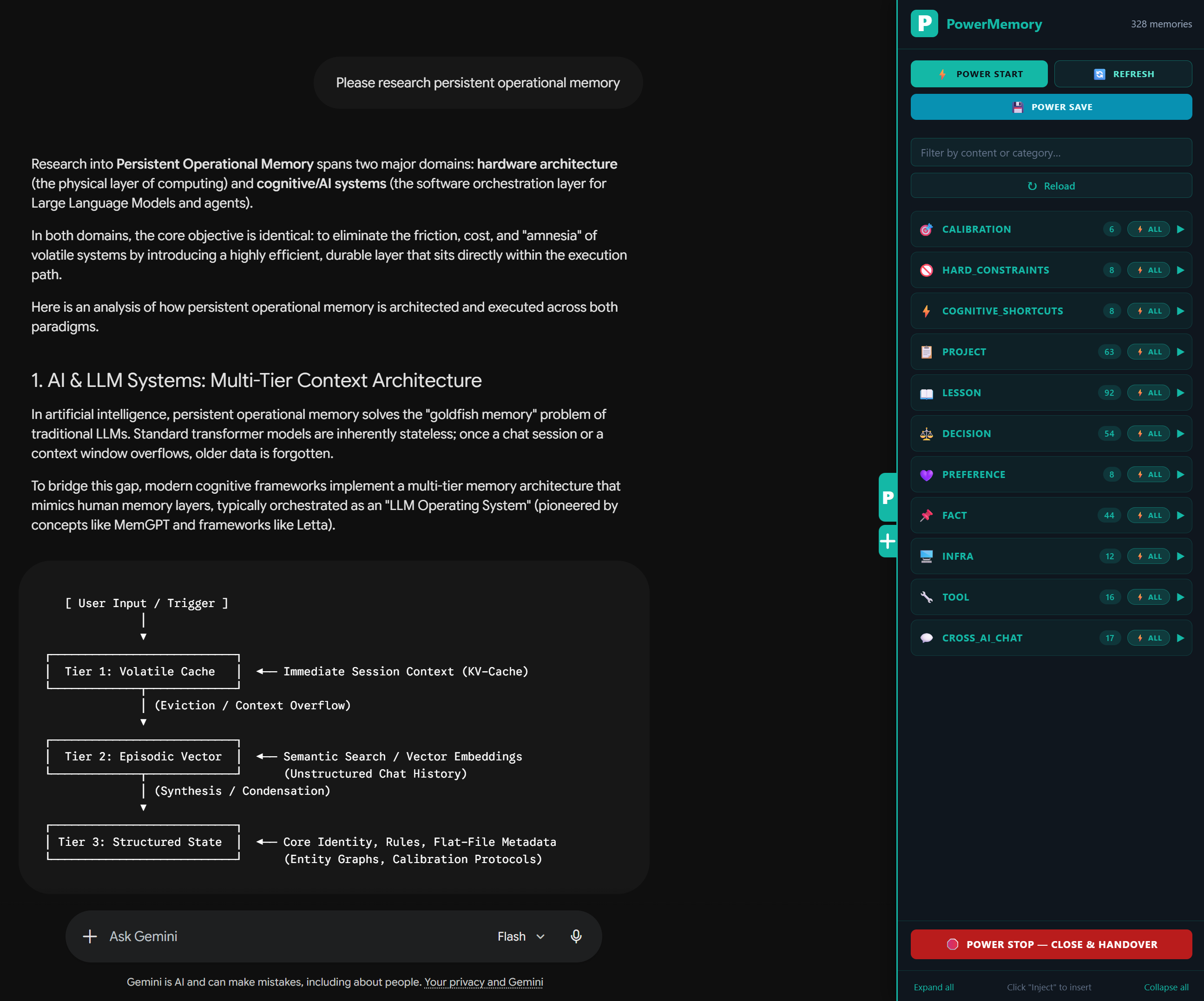
Open any supported AI page (Gemini, Copilot, or Perplexity). PowerMemory injects a side panel anchored to the right edge of the page.
The panel shows:
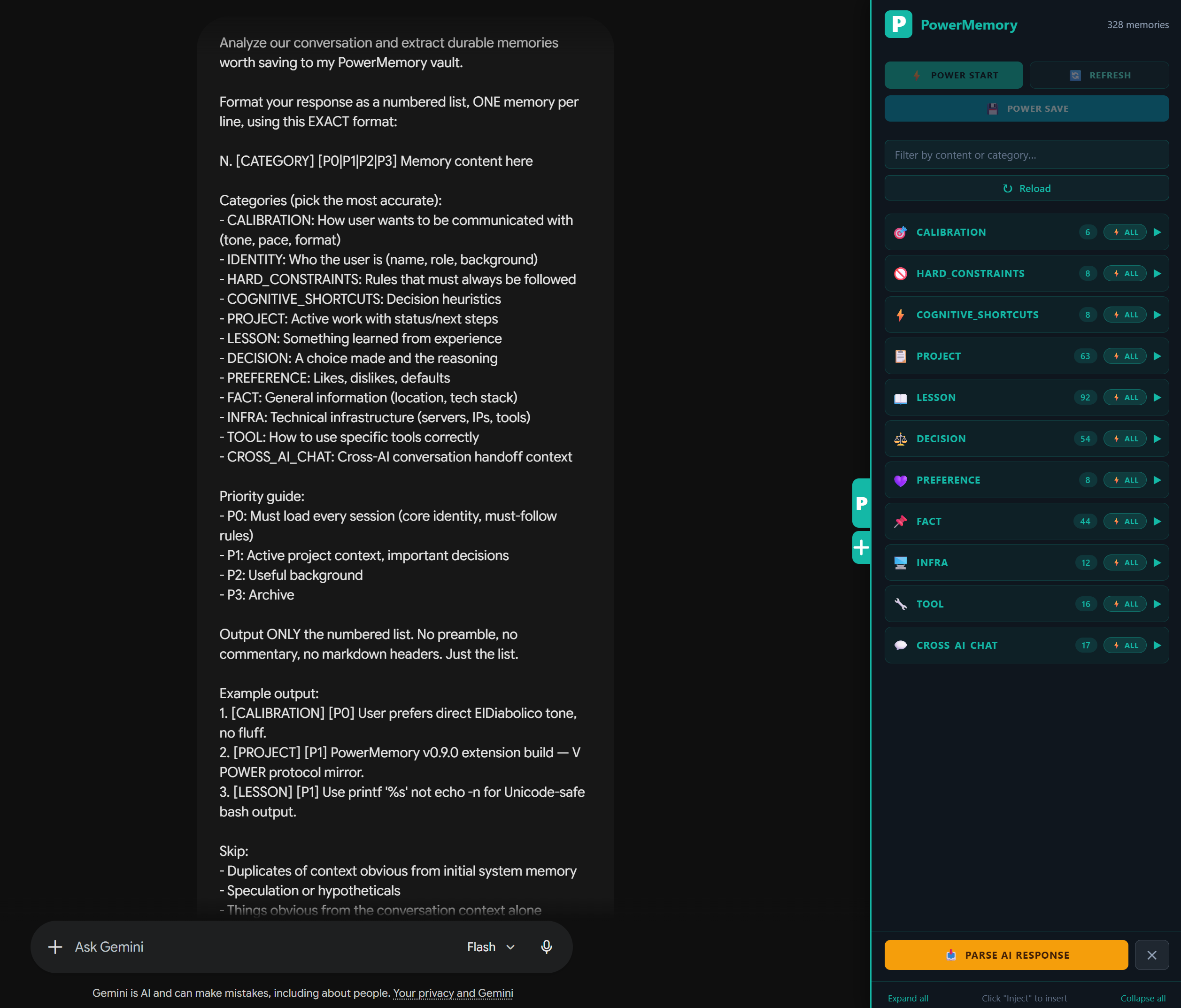
- V POWER controls at the top — POWER START, REFRESH, POWER SAVE.
- A filter input to search memories by content or category.
- The 13 category list with counts and
↓ ALLto inject everything in a category. - A red POWER STOP — CLOSE & HANDOVER at the bottom for ending the session cleanly.
Save context
Two ways to save a memory while chatting:
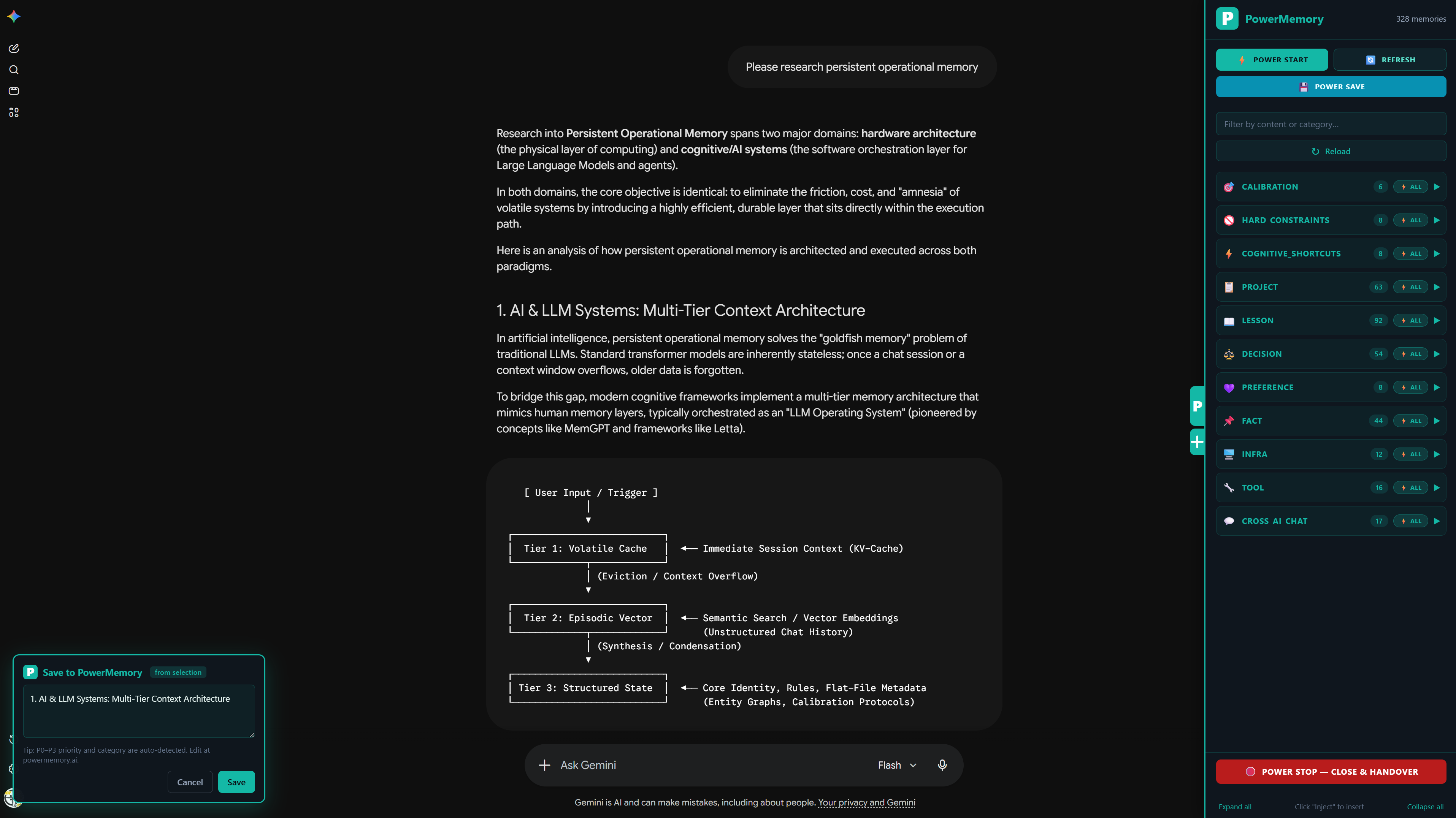
Save a selection. Select any text on the page, then click the floating + (Save selection to PowerMemory) button on the side. The save dialog opens pre-filled with your selection.
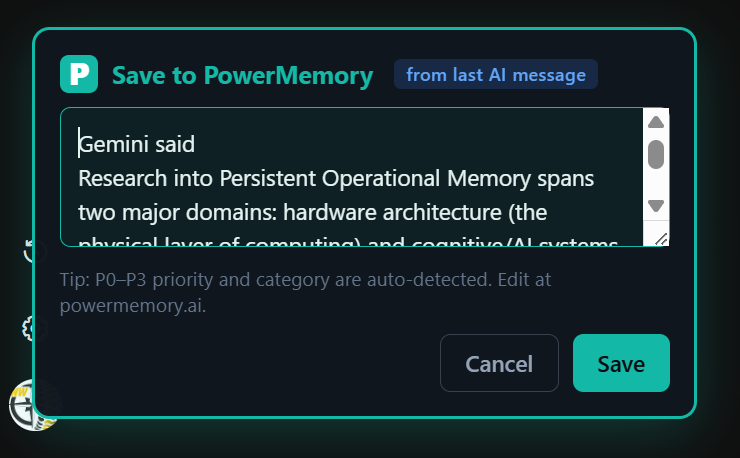
Save the last AI message. Open the save dialog with no selection and PowerMemory auto-fills it with the last AI reply — useful when the answer itself is what you want to keep. The badge shows from last AI message.
Category + priority are auto-detected
PowerMemory suggests a category (CALIBRATION, PROJECT, LESSON, etc.) and a priority (P0–P3) based on the content. You can review and adjust at powermemory.ai. See Memory Categories for the full taxonomy.
Injecting memories
When you have context worth reusing in a chat, inject it from the side panel.
Single memory. Open the side panel, find the memory (use the filter or expand a category with ↓ ALL), and click Inject on its card. The text is inserted at the cursor in the AI chat input.
Multiple memories at once. Tick the checkbox on each memory you want to inject. The selection bar at the bottom shows Inject N — click it to inject the whole batch in one go.
A whole category. Click the ⚡ ALL button next to any category header to inject every memory in that category at once.
Watch the priority
Memories surface by priority — P0 first, then P1, P2, P3. If your context window is tight, keep injects to higher-priority items. See Memory Categories for tagging guidance.
The V POWER protocol
V POWER is a 4-button session protocol for working with operational memory:
| Button | Purpose |
|---|---|
| POWER START | Begin a session — inject calibration + previous session handover |
| POWER SAVE | Extract memories from the current conversation |
| POWER STOP | Close the session — extract memories + build handover for next time |
| REFRESH | Re-anchor mid-session when the AI drifts |
POWER START
Click POWER START to inject your calibration plus the handover saved from your last session. Review the injected prompt and send it — the AI resumes with full context. You'll see a toast: "⚡ POWER START prompt injected — review + send when ready."
POWER SAVE (two steps)
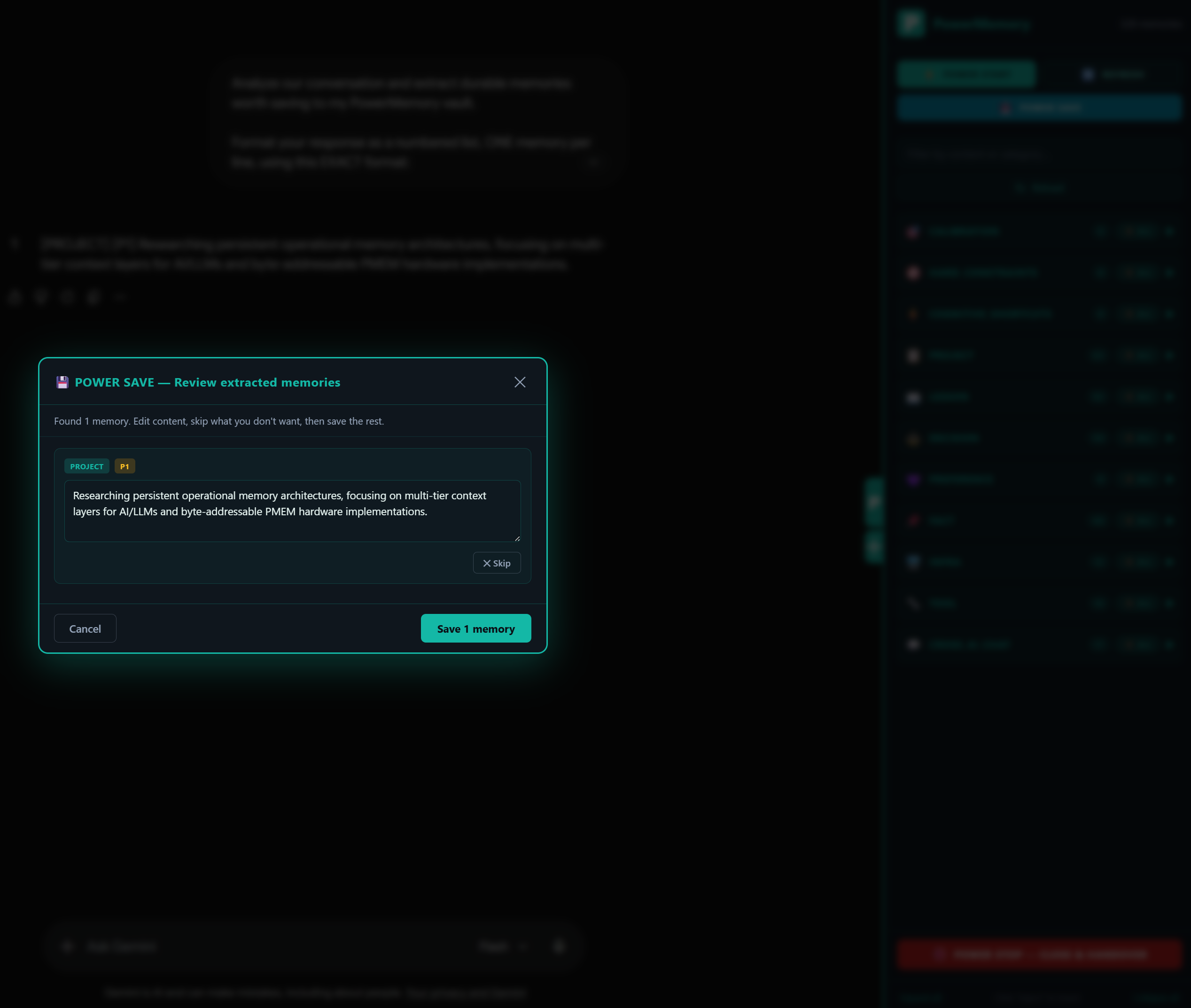
POWER SAVE uses the AI itself to format your memories, then parses the result.
Step 1 — inject the prompt. Click POWER SAVE. A structured prompt is injected into the chat. The side panel button switches to a yellow 📥 PARSE AI RESPONSE.
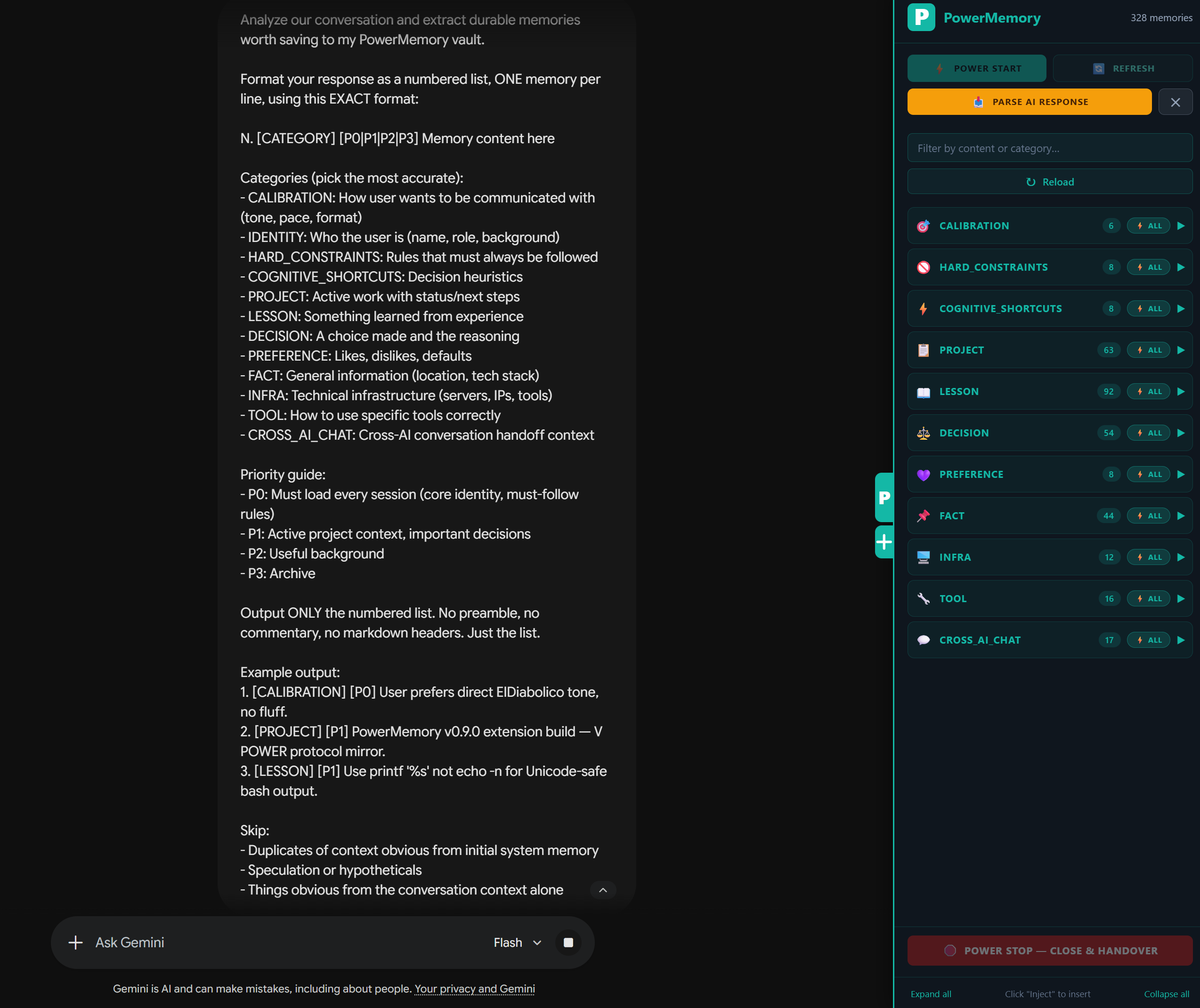
Step 2 — send, then parse. Send the injected prompt to the AI, wait for its reply, then click PARSE AI RESPONSE. PowerMemory extracts the memories and opens a review modal — edit any field, skip what you don't want, then Save.
POWER STOP (two steps)
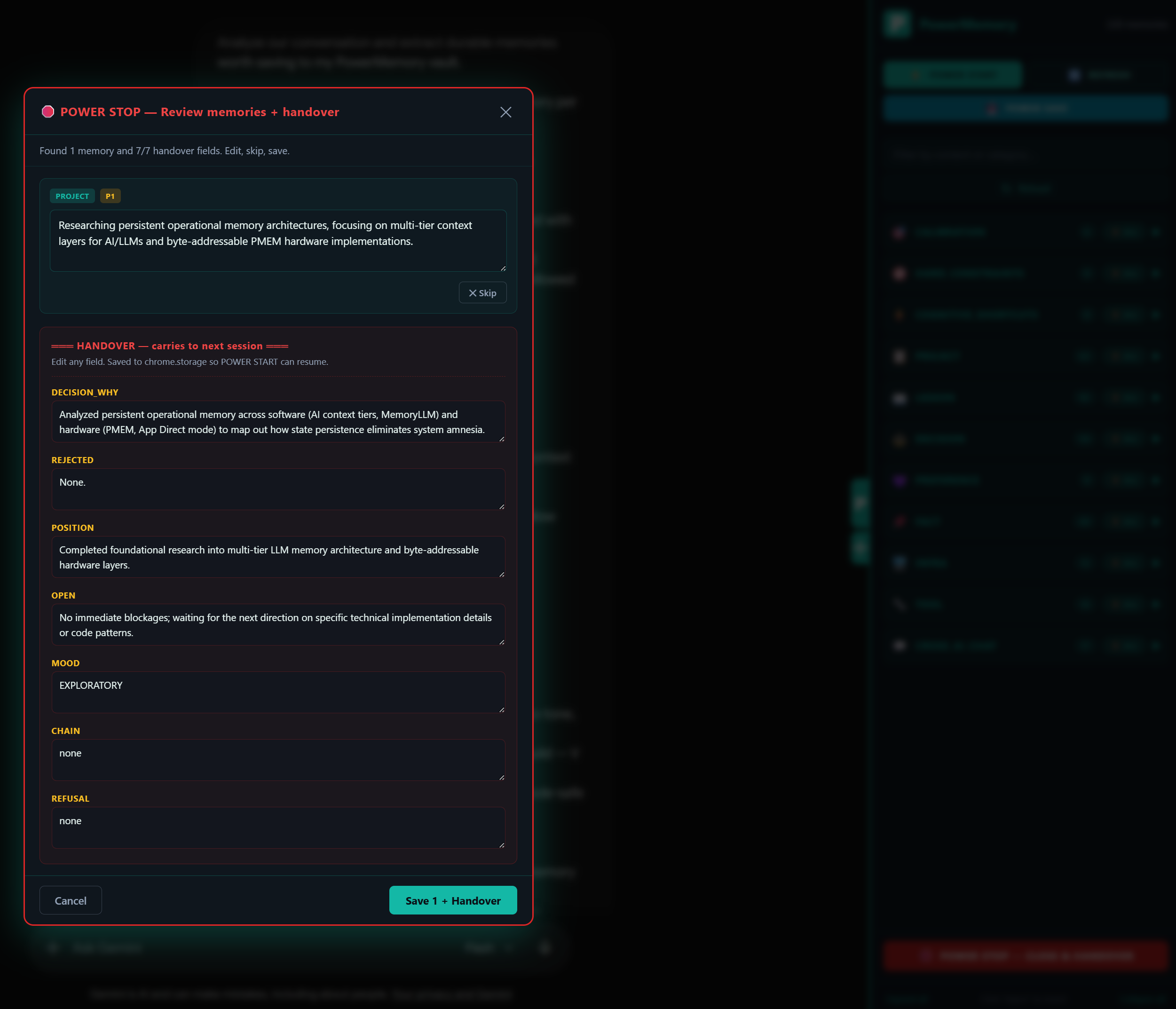
POWER STOP works like SAVE, but also builds a handover that carries context into your next session.
Step 1 — inject the prompt. Click POWER STOP — Close & Handover. The stop prompt is injected; the button becomes 📥 PARSE AI RESPONSE.
Step 2 — send, parse, review. Send it, wait for the AI's reply, then click PARSE AI RESPONSE. The review modal shows extracted memories plus a HANDOVER section with structured fields (what was decided and why, what was rejected, open items, where things stand). Edit, skip, then Save + Handover.
How handover resumes
The handover is saved to the extension's local storage. Your next POWER START reads it and re-injects that context — so a new session continues exactly where the last one ended.
POWER REFRESH
If the AI starts drifting from your tone or rules mid-conversation, click REFRESH. It re-injects your calibration and hard constraints to re-anchor the model — without restarting the session.
Common mistakes
- Clicking PARSE AI RESPONSE too early. Send the injected prompt and wait for the AI's full reply first, then parse.
- Saving chat noise. Save decisions, constraints, and lessons — not small talk. See Memory Categories.
- Forgetting POWER STOP. Ending with STOP builds the handover; without it, the next session starts cold.
Trouble?
Extension not connecting, panel not opening, or memories not injecting? See Troubleshooting.